Welcome to KeyCom Nexus
This user’s manual describes the functions of the browser-based KeyCom Nexus network information system. KeyCom Nexus is intended as a tool for telecommunications operators for network information management and network planning and maintenance. KeyCom Nexus creates consistent documentation of a network’s structure and connections. Having exact information on the structure and use of your network enables you to operate the network efficiently.
Content overview
The manual is divided into several sections:
- Getting started: This article covers system log-in and log-out procedures, password changes, and how to access the user manual during a session.
- Navigating the KeyCom Nexus interface: This article discusses tools related to basic functions in the map view, such as selecting background maps and object layers, using the coordinate section, address search, and printing functions.
- Working with network objects: This article explains how to create, edit, and manage network objects in KeyCom Nexus, including geometry settings, drawing options, and mandatory information requirements.
- Measuring distance, area size, and perimeter: This article explains how to measure distances, area size, and perimeter in KeyCom Nexus using the Distance tool and its options for adding points, viewing measurements, and completing calculations.
- Printing: This article explains how to use the Print tool in KeyCom Nexus for quick map printouts
- Working with Layers: This article explains how to use the Layers tool to select and customize basemaps and network object layers, manage favourites, and optimize map performance by displaying only the layers you need.
- Plans: This article explains how to access all available plans, mark plans as favourites, and view them conveniently from the Favourites tab.
More topics available soon...
Software overview
The software is used through Internet browsers and requires no additional software installation on the user’s workstation or mobile device. The network data that is used is stored in an online database from where the browser receives the data.
User interface
The user interface consists of a toolbar, map view, coordinate section and account menu:
- The sidebar is displayed at the left side of the map view, and you can use it to open network object panes to view and edit network objects. The sidebar also includes Layers and other tools.
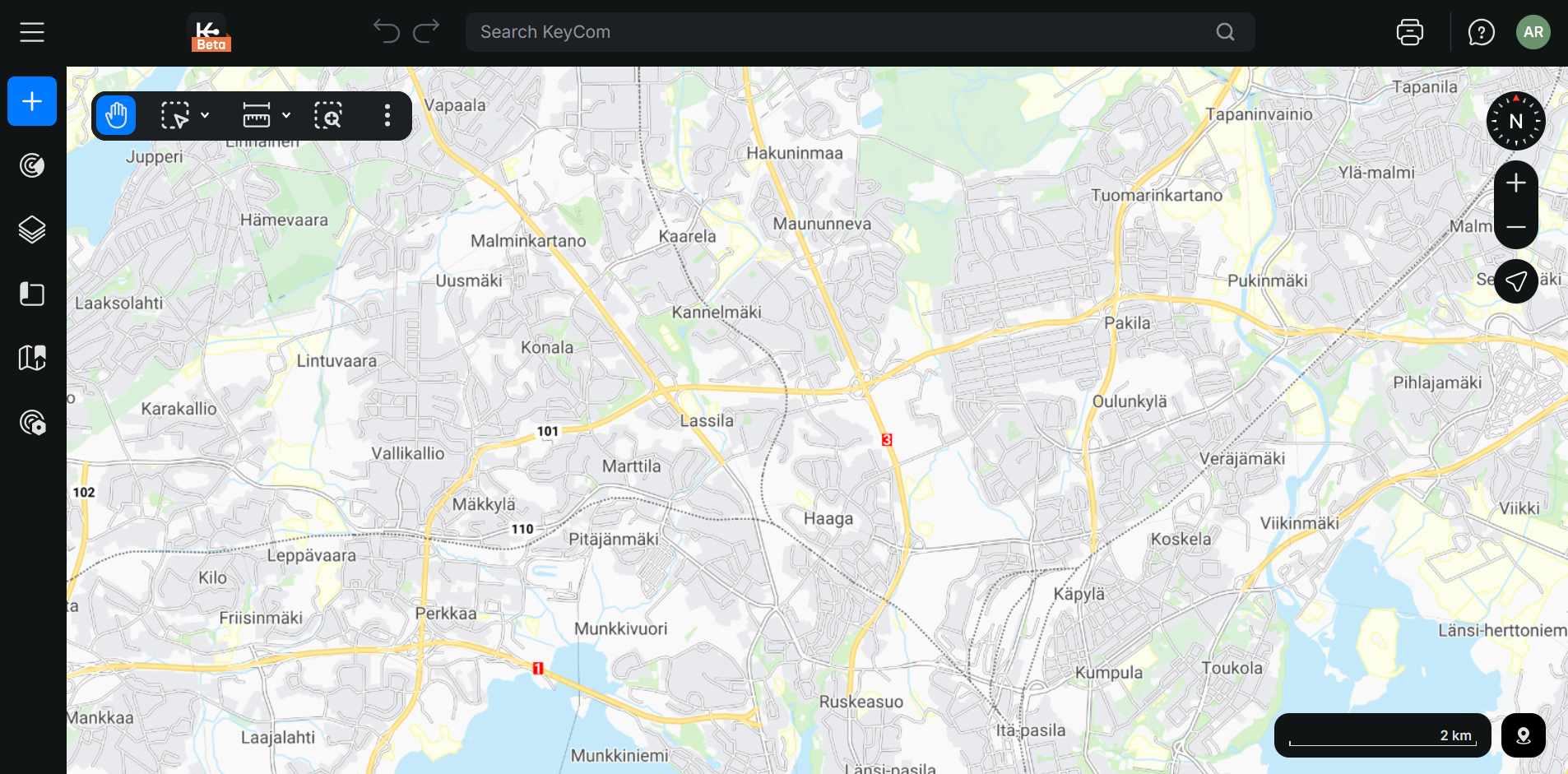
- The map view is the largest displayed section, which also includes a separate Map tools. This toolbar can be found from the top of the map view. Map tools enable you, for example, to zoom in and out in the map view, measure distances, pick objects from the map and copy the map link.
- A coordinate section displaying coordinate values is located at the bottom of the screen. With the coordinate section, you can also go to a coordinate point that you specify by entering the coordinates.
- Account menu enables access to password changes, user manuals, admin site, Keypro Oy website, and other application information (About) alongside with possibility to contact support and to logout of the system.
Hardware requirements
You use KeyCom Nexus via your web browser, so the minimum requirements and recommended equipment greatly depend on the browser you use:
- Browser: Microsoft Edge or Google Chrome with the latest updates. Firefox is also supported but require the fastest possible CPU (i7, i9). You must also enable cookies in the browser.
- Operating system: Should be in accordance with the browser’s requirements. Keypro Oy tests the system functionalities with Windows-based equipment. Linux Ubuntu 18 or newer is recommended.
- Processor: The minimum CPU is Intel Core i3. Intel Core i5 or i7 are recommended (or some equivalent from the AMD).
- Display: Minimum resolution of 1366 x 768 pixels (1920 x 1080 pixels recommended).
- RAM: Minimum 8 GB (16 GB recommended, with browser requirements considered).
User roles
Users are assigned a role in the system, and the user privileges specified for that role define the functions that are available to the user; in other words, they define the actions that the user can take within the program. Read-only users can view both the properties and location information of objects, but they cannot edit or add objects in the system. The buttons required for these functions are not even visible to users with read-only rights. If a user has read and write rights to properties or location information, the related buttons are visible. In addition to the above, an Admin user can, for example, modify default values. The tools and functions available to the user are determined based on user rights.
Logging in and accessing help
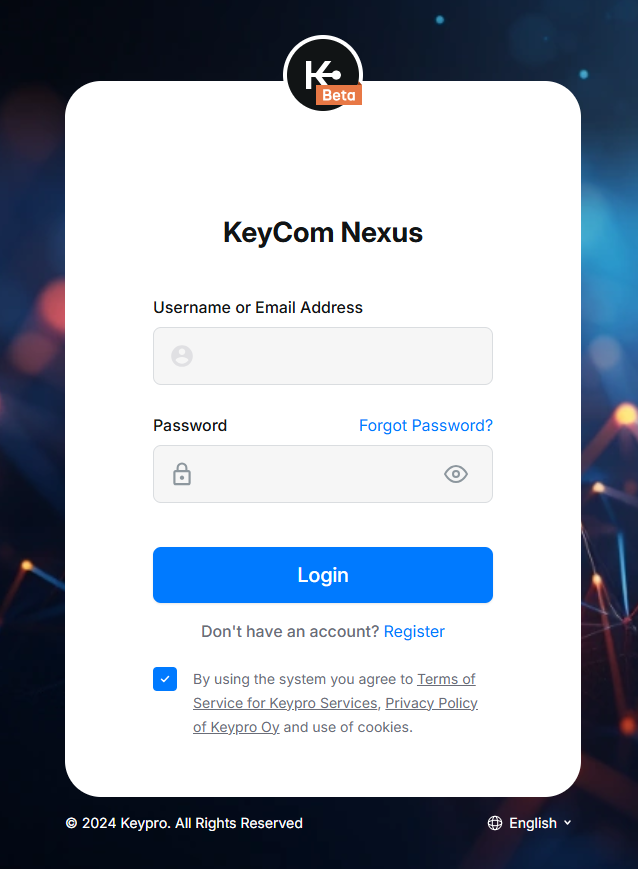
Log into the KeyCom Nexus system
- Open your Internet browser and then enter the address for the KeyCom Nexus service in the address bar of your browser.
- When the log-in page is displayed in the browser, enter your personal username and password in the fields.
- Remember to accept the Terms of Service and Privacy Policy established by Keypro Oy.
- Your session will start when you click the Login button.
Registering for a new account
If you do not yet have a user account, you can click the Register link to request user rights.
Note! If you receive the notification Please enter a correct username and password (note that the fields are case sensitive), you have entered either a wrong username or a wrong password. Enter the correct information and try again. Contact your system administrator if necessary.
Changing your password
You can change your password by clicking your account icon on the toolbar in the top-right corner. Your user name is a link to the page on which you can change your password.

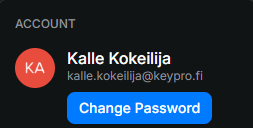
On the page that is then displayed, enter your new password twice in the appropriate fields. Then click Submit. New users can be forced to change their password when they first log in.
User manuals, about, and support
Changing the password, user's manuals and information related to the application can be found in the Account menu, which is located in the top-right corner of the user interface.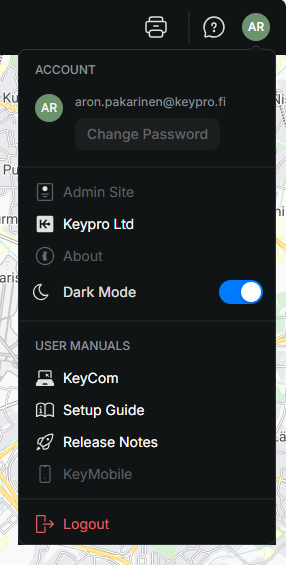
- Admin Site: If you have been granted sufficient access rights, you can access the KeyCom admin user interface by clicking Admin Site.
- Keypro Ltd: You can access the Keypro website by selecting Keypro Ltd from the menu.
- About: The About displays general information on the application, such as the version number and coordinate system.
- Dark mode/Light mode: Toggle between dark and light modes in the user interface.
- User manuals: In the User manuals section, select KeyCom Nexus User manual, Setup Guide or Release notes to access them in the Keypro Support portal.
- Logging out of KeyCom Nexus: You can end your KeyCom Nexus session by clicking Logout in the main menu.
- Support: Select Support to open a pre-configured email message in an email application. You can complete this draft message and send a support request. The pre-filled information on the application version and settings is useful information for the application support service.