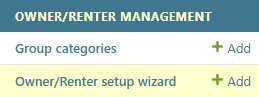
Use the Owner/Renter Management -> Owner/Renter setup wizard to add, edit and remove owner and renter values for several object types at once.
The Owner and Renter dropdowns on object forms (cables, conduits, devices, telecom premises, poles and so on) are filled from the object type’s owner group, for example CABLE_OWNER, DUCT_OWNER or DEVICE_OWNER. Owner and Renter use the same group, so a company you add to a group appears in both dropdowns.
Starting the wizard
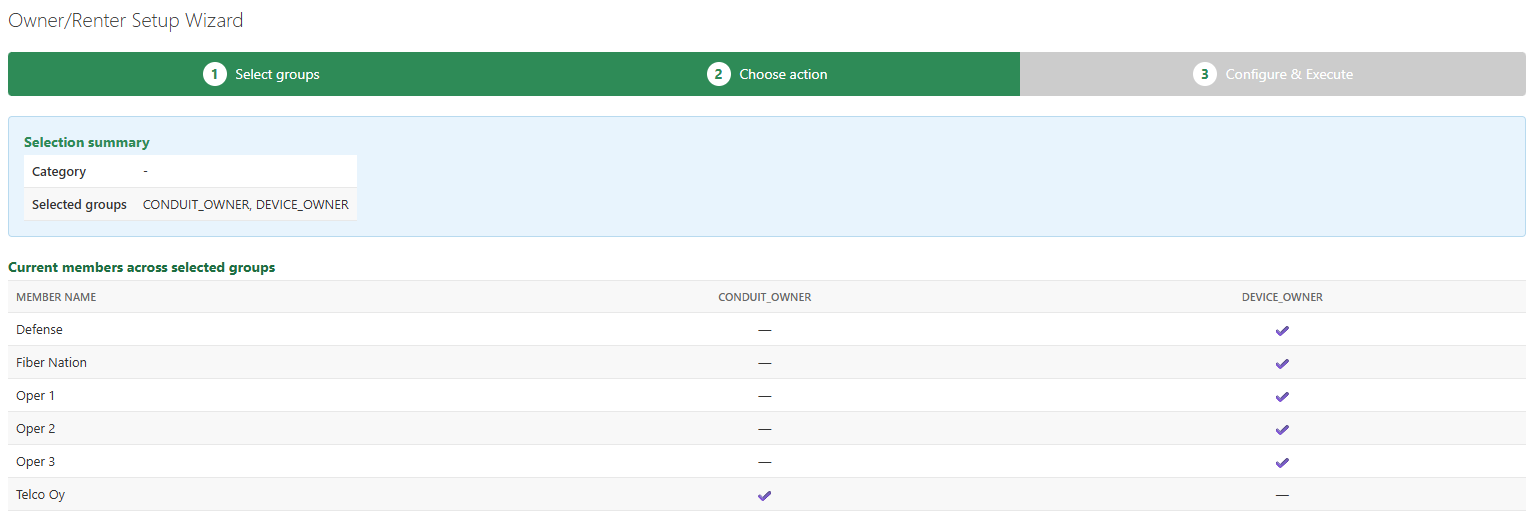
The step indicator at the top of the wizard shows where you are: Select Groups, Choose action and Configure & Execute. The ongoing step is shown in green. The Abort button on each step cancels the process:

Select groups
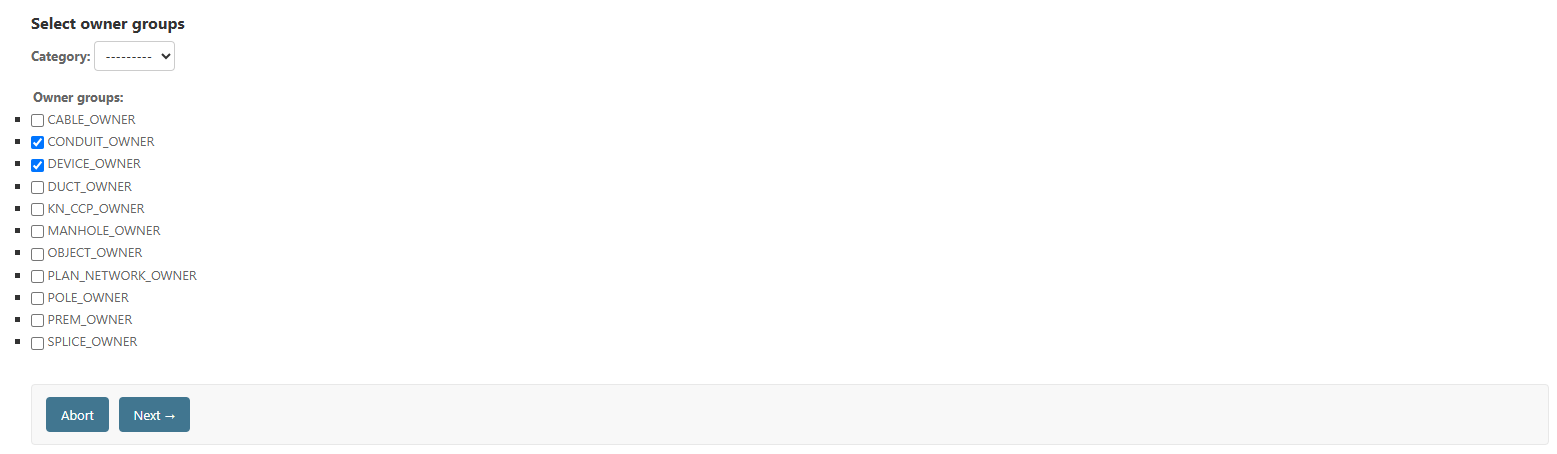
Choose the owner groups you want to work with:
- Select a predefined category, for example, NETWORK (telecom premises, devices and cables). The groups in the category are ticked automatically.
- Or tick individual groups manually. You can also combine the two. After selecting a category, you can still tick extra groups or untick any of them.
Click Next to continue.
Choose action
The Selection summary at the top shows the chosen category and groups. Below it, the Current members across selected groups table lists each member and the groups it belongs to. A tick means the member is present in the group, and a dash – means it is missing.
At the bottom of the page, under What would you like to do?, select one action and click Next:
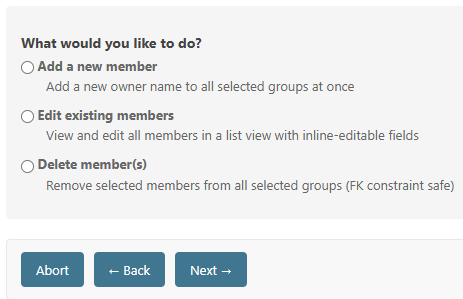
- Add a new member: add a new owner name to all selected groups at once.
- Edit existing members: view and edit all members in a list with inline-editable fields.
- Delete member(s): remove selected members from all selected groups.
Click Back to return to selecting groups.
Configure and Execute
The Selection summary and the member table stay visible at the top of this step.
Add a new member
Fill in the Add new member information:
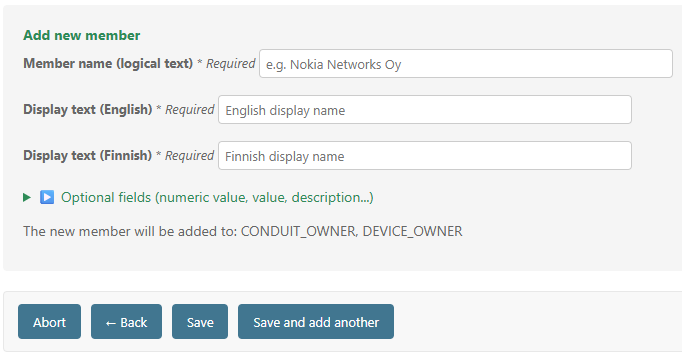
- Member name (logical text): the name of the member, for example Nokia Networks Oy. * Required.
- Display text (English): the name shown in English. * Required.
- Display text (Finnish): the name shown in Finnish. * Required.
- Optional fields: click to expand additional fields (numeric value, value, description and so on).
Click Save to add it, or Save and add another to add it and continue with the next member. If the member already exists in some of the groups, it is added only where it is missing, and no duplicates are created.
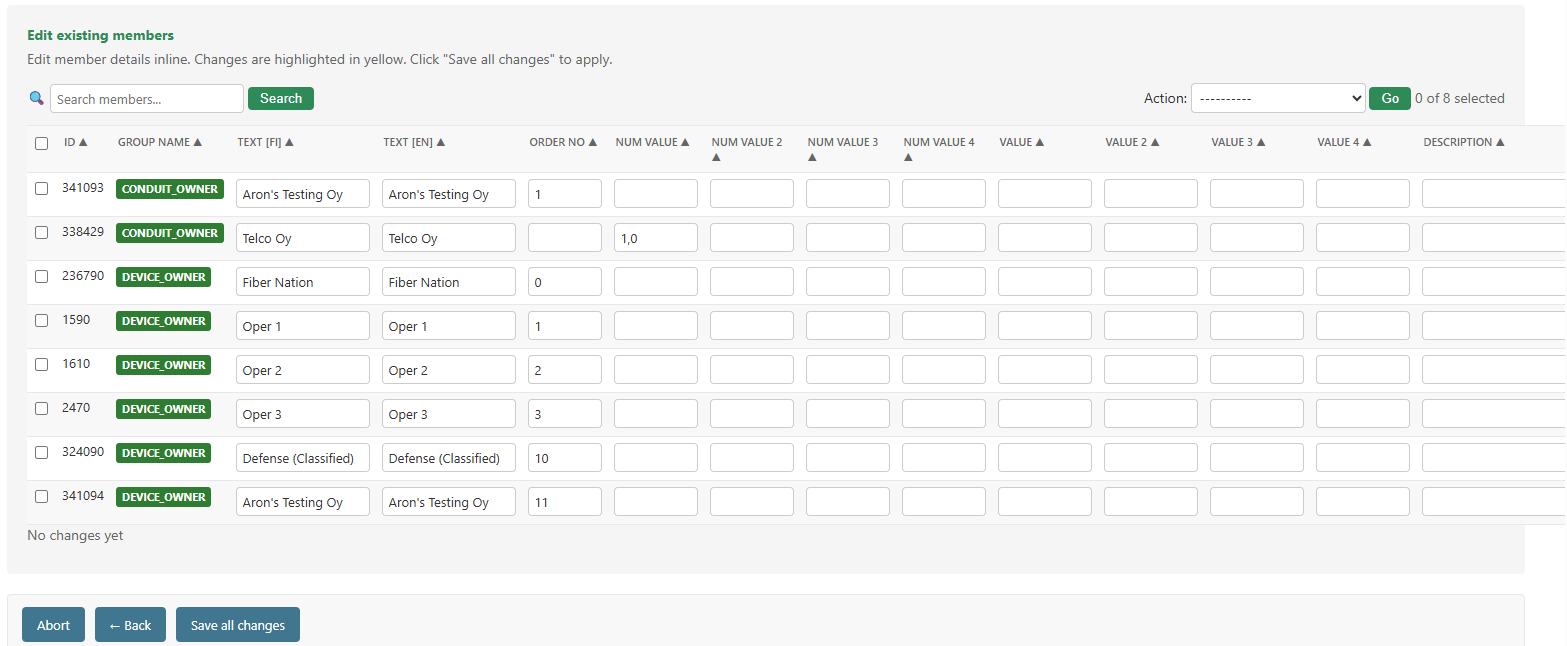
Edit existing members
All members of the selected groups are shown in one list. Edit the fields directly in the list. You can search and sort the list, change several rows, and save all the changes at once.
Delete members
- Select the members you want to remove:

- Read the warning. The deletion applies to all selected groups:

- Confirm the deletion by clicking Delete selected.
Note! A member that is still in use by existing network objects is protected and cannot be deleted.
Managing categories
The categories used when selecting groups are managed in Owner/Renter Management → Owner group categories.
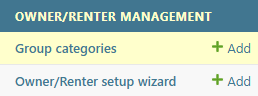
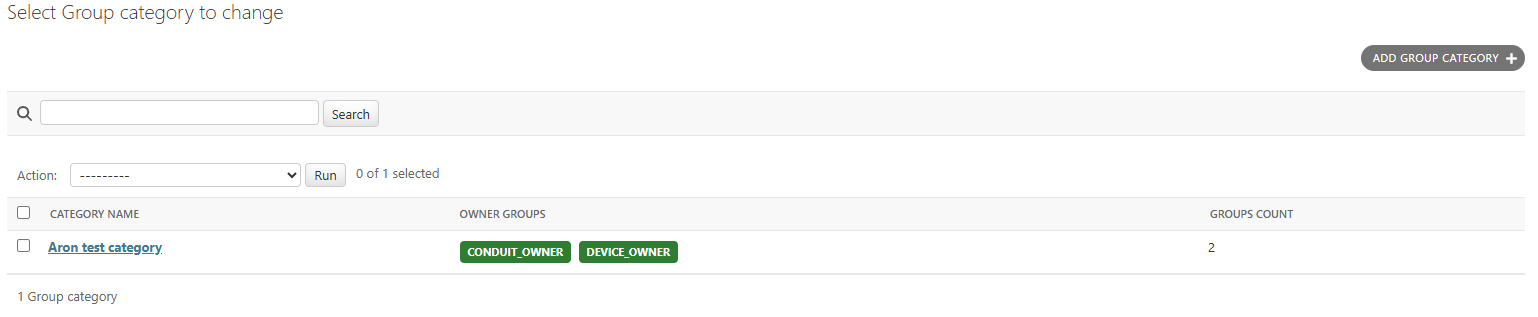
- To create a category, click
 . Name the category and add the groups to the category.
- To edit a category, click its name from the table. Click Save after editing.
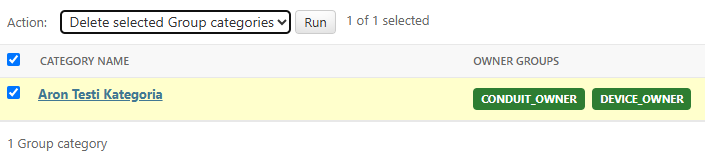
- To remove categories, tick them, select Delete selected Group categories from the Action menu and click Run: