You can view modeling data and the related objects by using the various function buttons available on the form.
Search, delete, and locate data
- Click Search
 to retrieve modeling cases to the Modeling
 form. You can use the General info fields at the top of the form as search criteria.
 - Click Clear
 to clear the form of all information.
 - Click Delete
 to delete the modeling case that is active on the form. Please note that this function deletes all objects and modeling results used for the modeling.
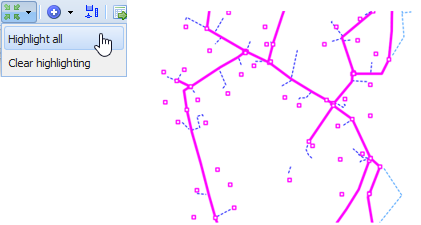
On the modeling form, click Locate all to locate on the map all objects used for modeling. In the drop-down menu for this button, click Highlight all to highlight the modeling objects on the map without centering the map. Click Clear highlighting to remove highlighting.
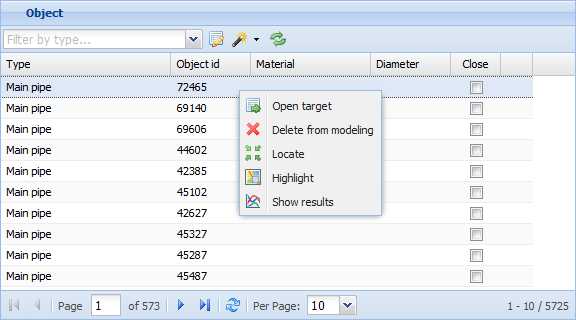
Place your cursor on the object data on the list and click the right mouse button. The following options are available in the menu:
- Open target – opens the object form with the details of the object.
- Delete from modeling – the selected object is deleted from the active modeling.
- Locate – locates the selected object on the map.
- Highlight – highlights the selected object on the map. You can select multiple objects on the list and highlight them all.
- Show results – displays the modeling results for the selected object.
Filter modeling objects
Use the Flat by area function at the top of the Objects list to filter by area the objects added to the object list for modeling. Click Clear all filters
 to list all the objects related to modeling.
In the Filter by type window, you can filter the objects of the required network so that the list includes the objects that have been added to the modeling case you are viewing on the form.
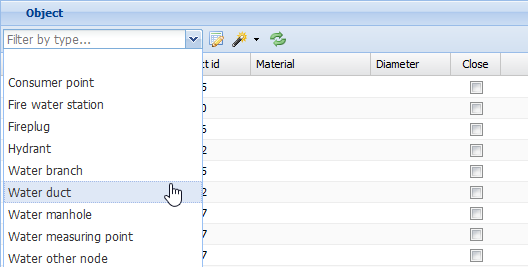
You can highlight the filtered objects by using the Locate all function at the bottom of the form.
The Close checkbox: You can close the duct you send for modeling. On the Objects list, you can also change the material and diameter of an object. In KeyAqua, the change is not saved on the Water duct form, and it will only affect the modeling and the results of modeling.
Click the Show only modified button to list only the ducts for which data has been changed for modeling purposes.