The Filters & Themes tool lets you view and apply themes on the map. Themes are saved sets of object search groups that determine which data is shown.
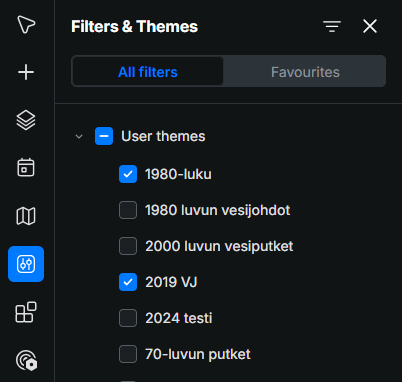
- All filters shows every available theme, grouped into categories. Click a category name, such as User themes, to expand or collapse it. Select the checkbox next to a theme to apply it to the map, and clear the checkbox to remove it.
- Favourites shows only the themes you have added to your favourites, so you can reach your most-used themes quickly.
Theme actions
When you point at a theme in the list, the following actions appear next to its name:
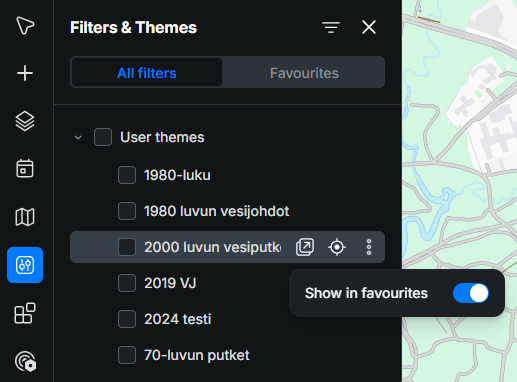
- Open form
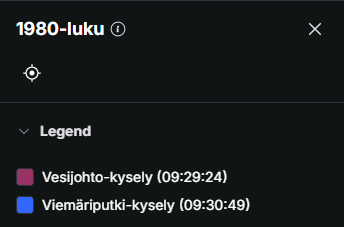
 : Opens the theme in another pane on the right. The pane shows the theme’s Legend, which lists the object search groups of the theme and the colours they use on the map, so you can tell which colour stands for which data:
- Locate
 : Moves the map to show the objects of the theme.
- More actions
 : Opens a menu with the Show in favourites toggle. Turn it on to add the theme to your favourites, and turn it off to remove it. Favourite themes appear on the Favourites tab.
Note!
User themes can only be viewed and applied in KeyAqua Nexus. They cannot be created or edited in this view. To create a new theme or change an existing one, use the Legacy KeyAqua UI. Read more User themes.