This article describes how to create, manage, and publish Supply Interruptions & Alerts in KeyAqua Nexus. The feature helps document interruptions, identify affected consumer points, plan work, and communicate with customers via alerts or SMS.
You can activate Supply Interruptions & Alertsfrom the Tools menu.
Creating a new supply interruption
To create a new supply interruption, open Tools > Supply Interruptions & Alerts.
- In the Interruptions & Alerts panel, click +Add new interruption.
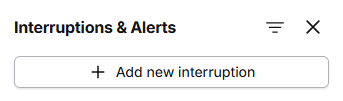
- The Interruption & Alert pane opens.
- Enter the required information in the Supply interruption section:
- Identifier: Unique name or code for the interruption.
- Network type: Select the affected network type.
- Person in charge: Specify the responsible person.
- Planner: Select the planner responsible for the work.
- Job: Select the related job or work order.
- Type: Select the interruption type.
- Plan: Select a plan if one is created.
- Notes: Enter any additional information if needed.
- In the Evaluated dates section, define the planned interruption period:
- Start date and Start time
- End date and End time
- If the schedule changes, use New start date and New start time to record the updated schedule.
- Click Pick conduit
 to select the network section affected by the interruption. When a conduit is selected, Nexus automatically analyzes the network and identifies related objects. The results are displayed in the following sections:
- Consumer points: Consumer points affected by the interruption.
- Valves to close: Valves that must be closed to isolate the affected area.
- Other objects: Other network objects related to the interruption.
- Observations: Observations generated during the analysis.
- Click Create to save the supply interruption.
After the interruption has been created, it becomes available in the Interruptions & Alerts list, where it can be picked for editing or or used for future alerts.
Adding valves and conduits to an existing supply interruption
It is possible to add new valves and conduit to a previously created and saved supply interruption.
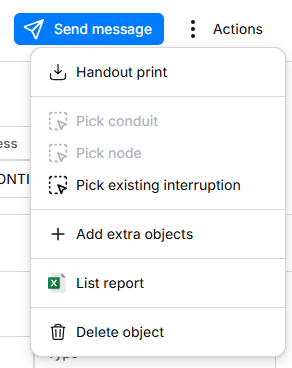
- Start adding a new object by clicking the Add extra objects from the Action menu:
- Pick the correct network object from the map, and then double click or select the object from the object selection list by clicking the
 button:
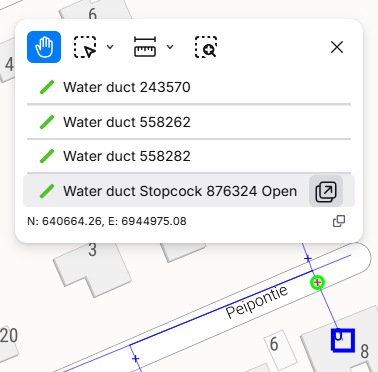
- The object will now appear in Other objects section within the Supply interruption pane.
Handout
Click the Handout print button from the Action menu to create a notice based on the information in the Supply interruption pane.
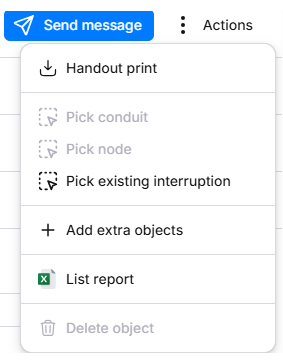
The system generates the notice in Excel format, where you can edit the content of the notice, and save or print the handout.