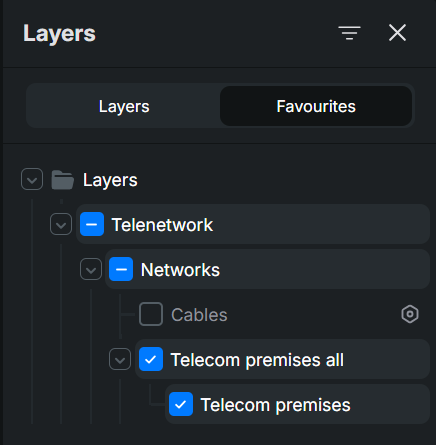
Map layers
You can select the background map and network object layers by using the Layers tool. Click Layers in the Menu to view the list of different layers. The available map layers depend on the customer and what has been agreed on previously. 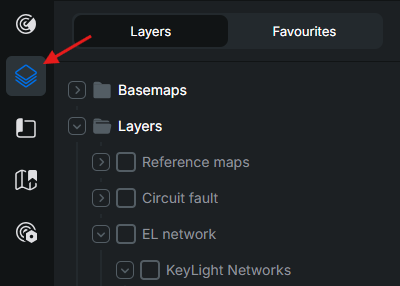
You can expand the lists of Basemaps and object layers by clicking the arrow symbol next to each row. To collapse them, simply click the arrow again. To close the form, click the cross icon.
Selecting the basemap
The default map is one of the available maps. You can also select some other map as the default map, or you can select the option Without basemap, in which case no basemap is displayed. You can also select multiple basemaps at once and customize the Layer opacity for them appear simultaneously: 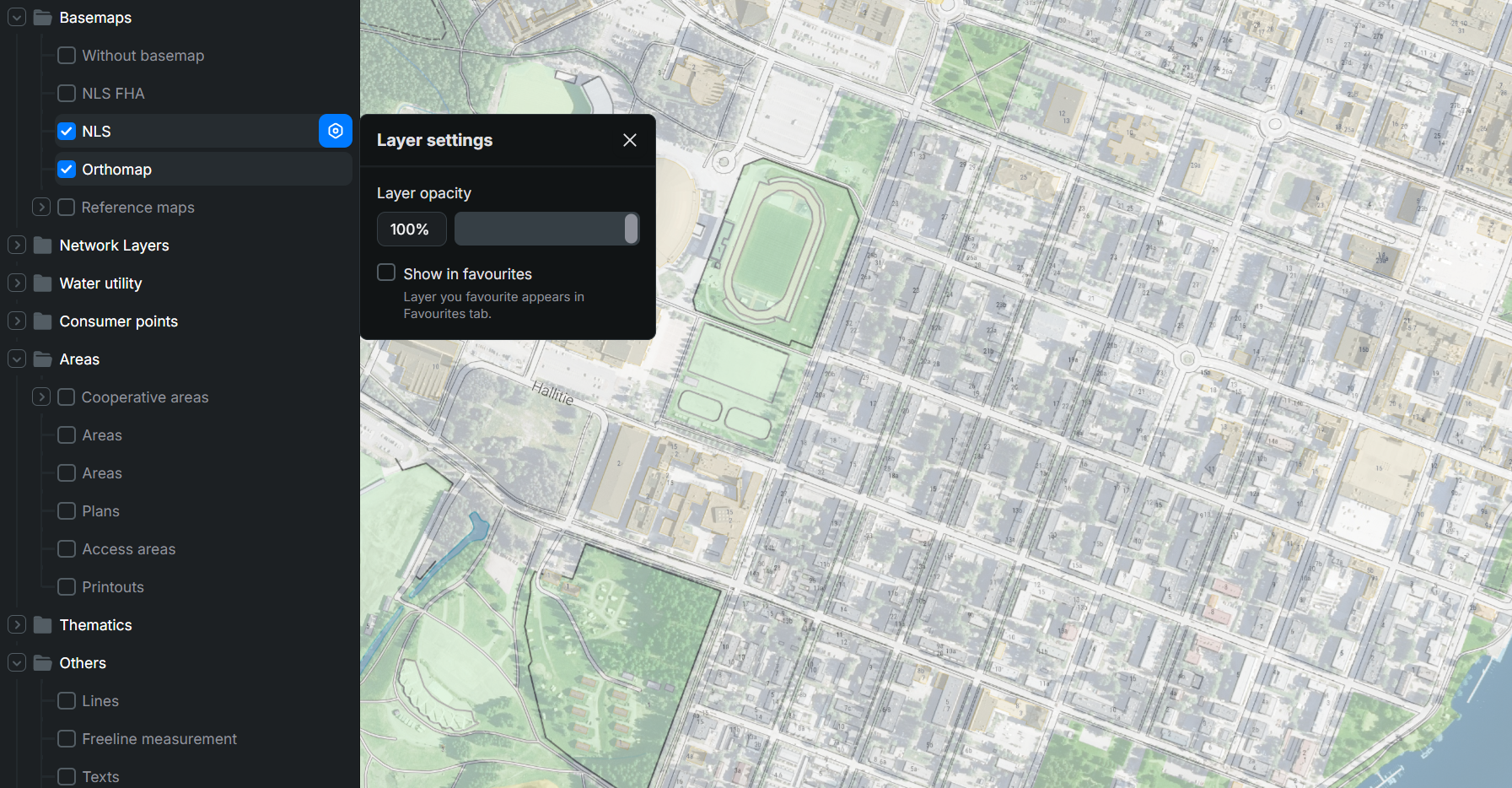 The background map provides users with a clear view of the locations of network objects, and it is not editable.
Network layers
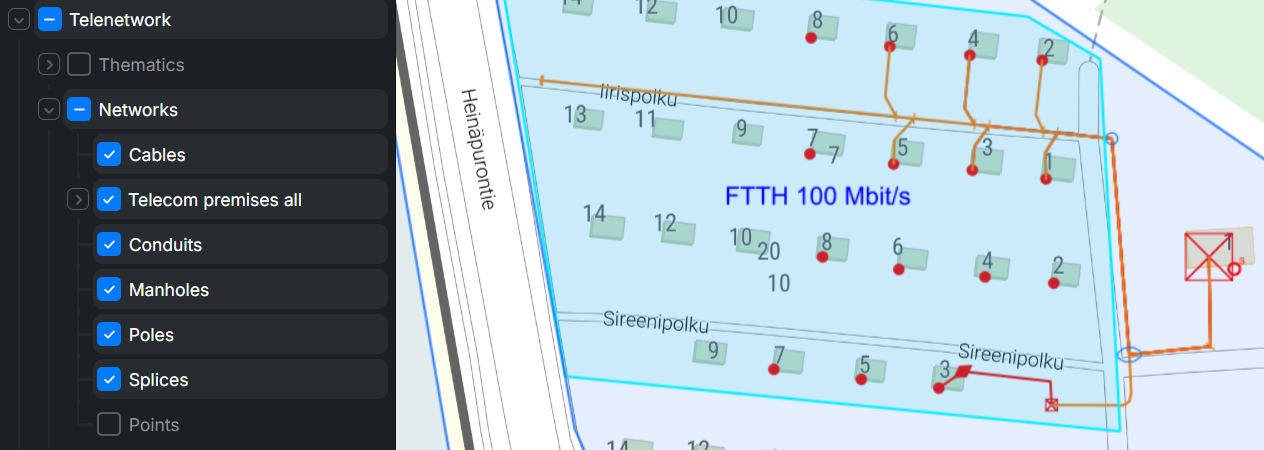
The Network layers available for selection are listed under Network Layers. You can select multiple layers to be shown at the same time. If an object layer is not selected, its objects are not displayed on the map and it is therefore not possible, for example, to pick them from the map for forms. You should select, at a minimum, those layers that have objects you want to view or edit.
The network objects are layers that are available for selection. In addition, you can select addresses, surveyed objects, highlights, thematics, plans, photos, radio links, annotations, and free texts and lines. Some network objects cannot be selected if the scale is too small, that is, if the map is zoomed out too much. Examples of such objects are splices, telecom premises, manholes, and annotations.
The checkbox on the left of an object’s name indicates whether the object has been selected. You can remove or add an layer by clicking its checkbox. You do not need to refresh the map afterwards as your selections are applied automatically. If you want to activate all layers at once, select the checkbox for the highest layer.
Show in favourites
- To add a layer to your favourites, click the Show in favourites button located next to the layer.
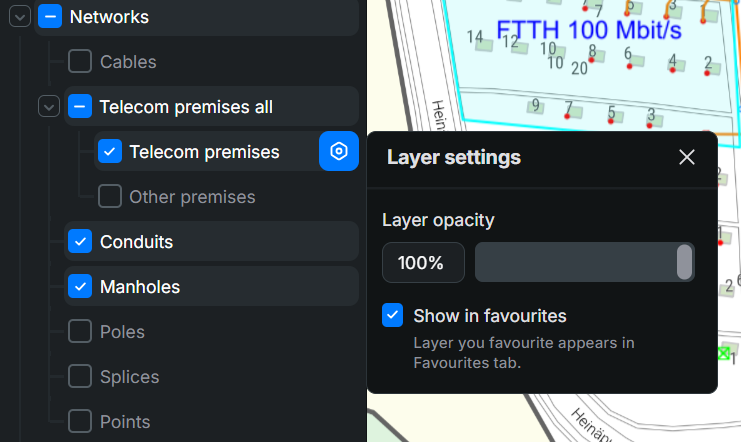
You can then browse and enable all your favourite layers from the Favourites tab.