The Cross-section form displays the connections between connectors in the selected telecom premises and devices, as well as the connections between threads and cables. It also provides information on the related circuits. The form is also used for reserving a connector or sub‑circuit for a circuit, creating new circuits, switching pairs, and releasing reservations.
In the KeyNet toolbar, click Cross-sectionto open the Cross-sectionform. You can also open this form through the telecom premises’ list of Devices or through the list of Telecom premises of the circuit section by clicking the right mouse button and selecting it in the displayed menu.
Cross-section form
The Cross-sectionform displays information on the selected telecom premises, such as Identification, Name, Type, Device room, Owner, Renter, Install year, Usage state, Street, Number (Street), Postal code, Post office, Database ID and the Device / Cable and Device / Cable Database ID filters.
The connectors and related connections of an activated device are listed in a separate Connectors list on the form. Cable's threads details can be examined on the Threads list.
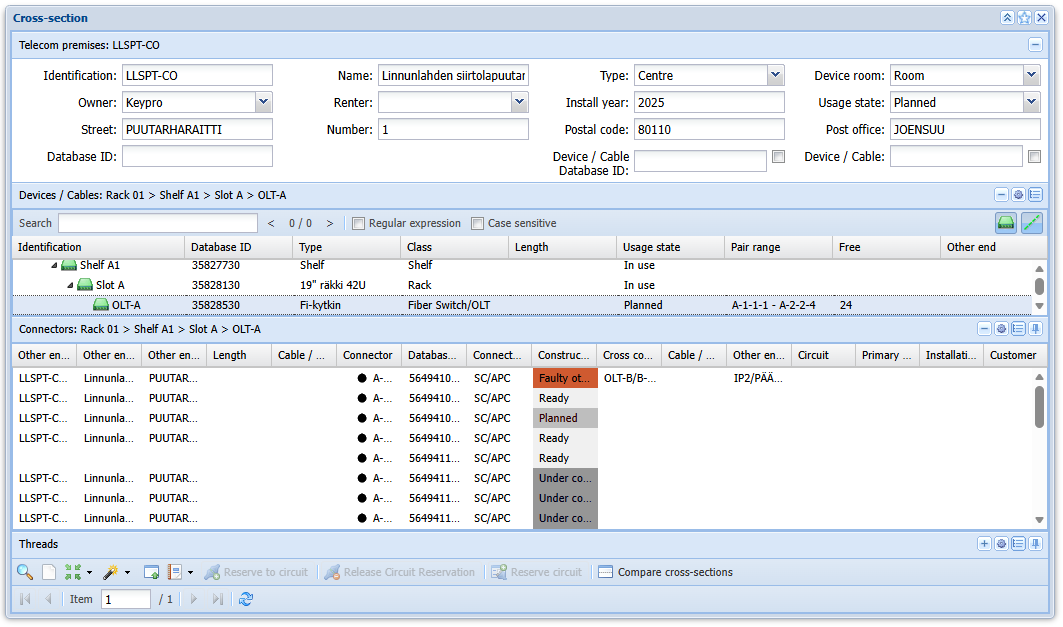
Search functions on the Cross-section form
There are several ways to open telecom premises and its related content in the Cross-sectionform:
- By entering the premises Identifier directly.
- By using the Pick from map
 tool.
tool. - By clicking Pick from telecom premises
 . You can search using any field available in the Telecom premises
 form. Search criteria can be entered either fully or partially, using the % character as a wildcard.
 - To load possible changes, click Refresh
 on the form.
Searching based on a device or cable identifier/database ID
Additionally, you can retrieve telecom premises based on a device or cable identifier or database ID. To do this, enter the identifier in the Device / Cable or the Device / Cable Database ID field on the Cross-sectionform . This will return all telecom premises containing the specified device or cable to the Cross-sectionform.

- If the Device / Cable or the Device / Cable Database ID checkboxes are enabled, the search conditions are applied to the Device / Cable filtering and list, automatically highlighting and preselecting matching rows.

- If a checkbox is disabled, the search criteria do not affect the Device / Cable filter list or the identifier fields, but conduct a normal search based on the provided information. All the rows matching the search criteria are highlighted in the Devices / Cables list, and the first match is automatically selected. If results are found in multiple different telecom premises, they can be browsed in the Cross-sectionform toolbar at the bottom of the form (Item).

Note! The search field for the Devices / Cables list is always automatically populated when the user searches for existing telecom premises locations using a device or cable identifier/database ID.
Pin/Unpin toggle
The Pin/unpin toggle buttons manage whether the Connector and/or Thread lists are open automatically.
- Pin selected
 : The system respects the user's choice to keep the lists open or closed. They will not be automatically enabled when a device or cable is selected.
 - Unpin selected
 : The system will automatically display the content of the associated Connectors and/or Threads lists whenever a device or cable is selected in the Cross-sectionform.
Compare logical cross-sections
You can view several different cross-sections at the same time by using the Compare cross-sections tool which can be enabled from the form's toolbar.
This tool enables simultaneous comparisons such as comparisons between various devices, their connectors, and circuits in some specific telecom premises. The Cross-sectionfrom which the Compare logical cross- sections function is activated will become a so-called primary form, and the Cross-section forms used for comparison will be named in accordance with the header >Cross-section.
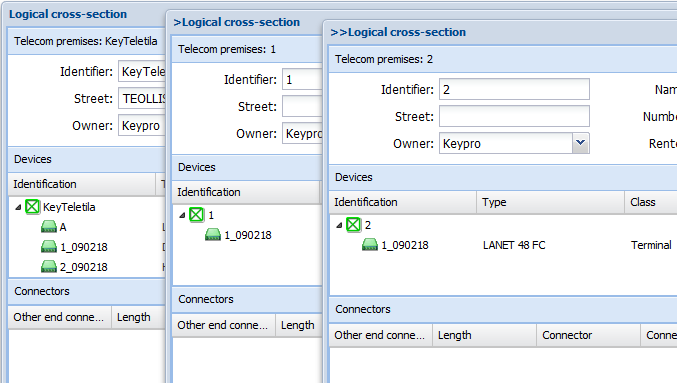
Devices / Cables
The Devices / Cables list includes information on the device, such as the device identification, type, class, usage state, and pair range. The column named Free indicates how many connectors in the device in question are available. The OE telecom premises column displays the telecom premises that the device in question can access.
The visibility of devices and cables in the Devices / Cables grid can be determined before a search by using the Show devices and Show cables
 buttons in the upper right corner of the grid. Only Show deviceis activated by default.
The Devices / Cables displays the hierarchy of the selected device next to the list title.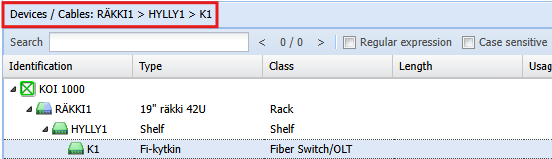
You can also use the Search functionality to look for devices and cables related to the telecom premises. The corresponding text written in the field is highlighted on the hierarchy below. Turning to next page of the form resets the Searchfunctionality.
- Turning on Case sensitive activates a search that have strict checking of lower and upper cases. For example, if you search the word "in use" the system will only search for that desired word and will exclude words like "In use" from the search because it has an upper case letter.
- The Regular expression allows you to search for specific patterns, as opposed to certain terms and phrases.
Device / Cable filtering
In the top-right corner of the Devices list, click Device/Cable filter . Filter devices based on Identification, Type, Class, Usage state, Other end, Service and Connector and cables based on Identification, Type, Class, Usage state, Other end, Length and Pair / Thread. Select or enter the filters and click Update to view the filtered devices on the Devices /Cables list.
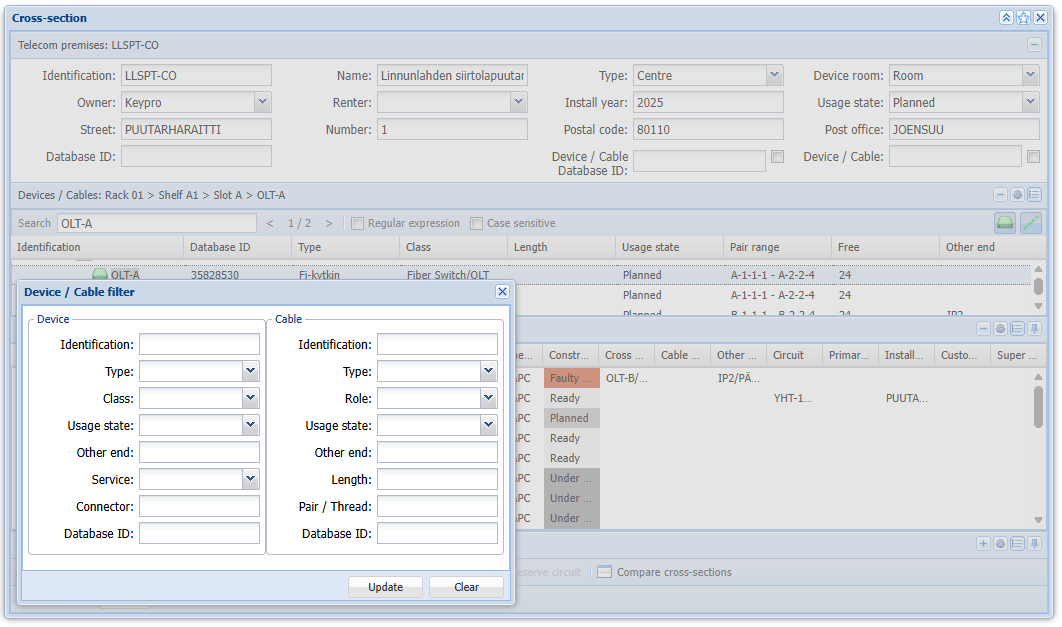
When devices are filtered, the form functions are applied to a limited group of devices. In the top-right corner of the Devices / Cables list, click Clear device filter to remove filters.
Functions of the Devices / Cables context menu
On the Devices / Cables list, click telecom premises or a device using the right mouse button. The displayed context menu includes the following functions: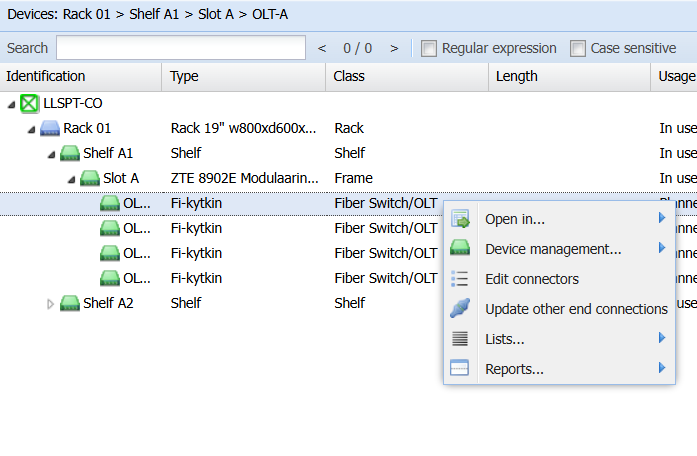
- Click Open in...
- Open telecom premisesto open the Telecom premisesform for the telecom premises in question.
- Device form
 to open the Deviceform that includes the information on the selected device.
 - Telecom premises device listto open the Devices tab of the Telecom premisesform and to view information on the selected device.
- Route follower
 to open the Route followerform with information on the telecom premises in question.
 - Affected area
 to open the Route followerform pre-completed with the selected device’s connectors and cables connected to the connectors. The route follower highlights the connection routes that are connected to the selected device either directly or over logical cross-connections.
- Open telecom premises
- Click Device management...
- Add new subdeviceto create a new subdevice under the selected device. The Deviceform opens for entering the subdevice information, and clicking Save
 finalizes the creation of the new subdevice.
 - Copy device
 to create a duplicate of the selected device, including its main properties, and open the Deviceform for modifying the copied information. Clicking Saveon the Deviceform completes the creation of the copied device.
 - Delete device
 to remove the selected device from the system.
 - Move device
 to move the selected device to another location or parent device. The system opens a list of devices that have circuit reservations. Right-click on the target device to complete or cancel the operation.
- Add new subdevice
- Click Edit connectors
 to open the connectors for form, on which you can name and edit the connectors of the device.
 - Click Update other end connections
 to create or update a device’s other end connections.
 - Click Lists...
- Circuits
 to open the Circuit list of device’s connections.
 - Open other end telecom premises list to open a list of other end telecom premises to separate window.
- Open other end telecom premises list with subdevices to open a list of other end telecom premises with subdevices to separate window.
- Circuits
- Click Reports...
- Click Print cross-section report (pdf) / (xlsx)to create an Excel or PDF report on the connectors and circuits of the selected device (also with related sub-devices).
- Click Print cross-section report (pdf) / (xlsx)
- Expand/collapse opens/closes the devices in the device’s sub-hierarchy.
Connectors
The connectors and related connections of a selected devices are listed in the Connectors list. The Connectors list includes the following columns:
Other end connector | The connector to which the viewed connector has a logical connection. Displayed in the column: telecom premises/device/connector |
| Other end name | The name of the other end connector |
| Other end type | The type of the other end connector (column hidden by default) |
| Other end technical info | The technical information of the other end connector (column hidden by default) |
| Other end address | The address of the other end connector |
| Other end zipcode & city | The zipcode and city of the other end connector (column hidden by default) |
| Other end municipality | The municipality of the other end connector (column hidden by default) |
Length | The total length between the connectors. |
| Cable / Thread | Indicates which strand the device is connected to in the cable |
Connector | The name of the connector. (cannot be disabled) |
| Database ID | The unique database id of the connector. |
| Connector number | The connector number (column hidden by default) |
Connector type | The abbreviation of the connector type. |
Const. state | The construction state of the connector. If the construction state is not built, it is not shown on the connector list. |
| Owner | The name of the circuit’s owner. Access to the Customer form (column hidden by default) |
| Connector remarks | Additional free-form details related to the connector (column hidden by default) |
Cross connection | The connector to which the connector of the row viewed has a cross-connection. Displayed in the column: device/connector. |
| Cable / Thread | Indicates which thread the device is connected to in the cable |
Other end connector | The other end connector of the cross-connection. Displayed in the column: telecom premises/device/connector |
| Other end name | The other end name of the cross connection (column hidden by default) |
| Other end type | The other end type of the cross connection (column hidden by default) |
| Other end technical info | The other end technical info of the cross connection (column hidden by default) |
| Other end address | The other end address of the cross connection (column hidden by default) |
| Other end zipcode & city | The other end zipcode and city of the cross connection (column hidden by default) |
| Other end municipality | The other end municipality (column hidden by default) |
Circuit | The circuit that has been reserved for the connector. Displayed as: circuit (abbreviation of the usage state). |
| Circuit Identifier 2 | The second identifier of the circuit (column hidden by default) |
| Primary circuit | Used as a primary circuit |
Installation address | The street name and number of the customer’s installation address (the address of the starting point is used by default, and the selection between the starting/ending point can be defined in the database) |
| Installation address (2nd) | Secondary installation address (column hidden by default) |
Customer | The name of the customer linked to the circuit. Access to the Customer form. |
| Super circuit | The identifier of the related super circuit |
Connectors list
The Connectors list highlights those device connectors that involve a multi-use (meaning two or more circuits reserve the same device connector) with the symbol. On the Circuit column, you can also see the amount of reservations in brackets:

The colours on the list indicate the usage state of the connector in question (Ready to be connected is used if the TTMi interface is in use):
In use |
Pre-connected |
Partially pre-connected |
Soon in use, Soon free |
Free |
Filtering connectors
In the top-right corner of the Connectors list, click Connector filter . Filter connectors based on the Connector, Connector type, Owner, Remarks, Circuit, Inst. address, Other end, Other end address, Other end type, Connector range, Const. State, Service, Usage state, Customer, Length and Other end name. To view only connectors that are not reserved for circuits, select the Free only checkbox. Select or enter the filters and click Update to view the filtered connectors on the Connectors list.
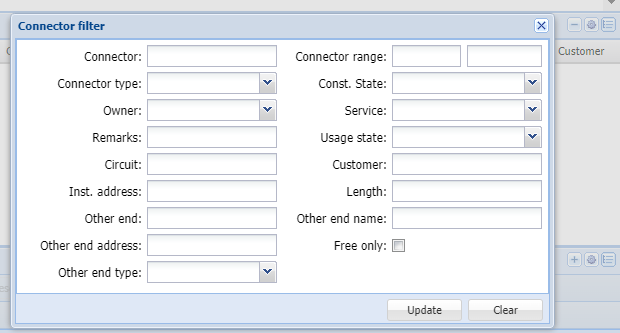
When devices are filtered, the form functions are applied to a limited group of devices. In the top-right corner of the Connectors list, click Clear connector filter to remove filters.
Functions of the Connectors context menu
On the Connectors list, click a connector using the right mouse button. The displayed context menu might include some of the following functions:
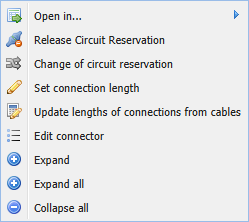
- Click
 Open in...
- Circuitto open the circuit on Circuitform.
- Other end telecom premisesto open the other end telecom premises on Telecom premises form.
- Other end telecom premises on crossreportto open the other end telecom premises on Cross-sectionform.
- Route followerto open the Route followerform with information on the telecom premises in question.
- Circuit
- Click
 Release circuit reservation to release the selected connector. Read more in Releasing a connector reservation.
 - Click
 Change of circuit reservation to change logical reservation for connectors. Read more in Changing logical reservations for connectors.
 - Click
 Set connection length to define the length of a connection. Read more in Updating lengths of connections
 - Click
 Update length of connections from cables to update the lengths of all logical connections based on the actual cable lengths.
 - ClickEdit connecter to edit the values of the connectors on the list. Read more in Editing connectors.
- ClickCreate circuit using...
 Logical reservations to create a circuit with the selected connector reserved as a logical reservation, optionally continuing via the Reservation of connection form if logical connections exist.
 Physical reservations to create a circuit with the selected connector reserved as a physical reservation, optionally continuing via the Route followerform if physical connections exist.
- Click
 Split connectors to split the selected connector. Read more in Connector splitting.
 - Click
 Expand to open a drop-down menu with connector's reserved circuits.
 - ClickExpand all to open all circuit drop-down menus on the grid.
- Click
 Collapse all to collapse all circuit drop-down menus on the grid.
Releasing a connector reservation
To start the release of a circuit reservation, select the reserved connector on the list and click Release circuit reservationin the tool bar at the bottom of the form. You can also activate this function by clicking a connector with the right mouse button and selecting Release circuit reservationor selecting a connector and clicking Release circuit reservationfrom the Cross-section form's toolbar.
You will see the following question: Are you sure you want to release the circuit´s reservation? If you answer Yes, the reservations for the selected connector and connection will be removed from the circuit in question.
Changing logical reservations for connectors
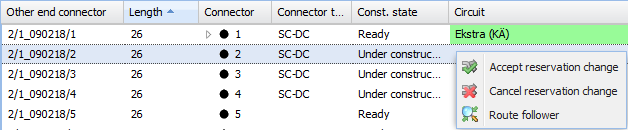
On the Cross-sectionform, you can change the circuit reserved for a device’s connector, or you can change the circuits to go through the same device’s other connector that has no circuits.
On the form, select the connector with a circuit or circuits. Alternatively, you can also select an individual circuit row by opening the connector’s circuits for viewing.
Then, click Change of logical reservationin the menu displayed when you click the right mouse button. Except for the Connectors list, all other lists on the Cross-sectionform will be disabled.
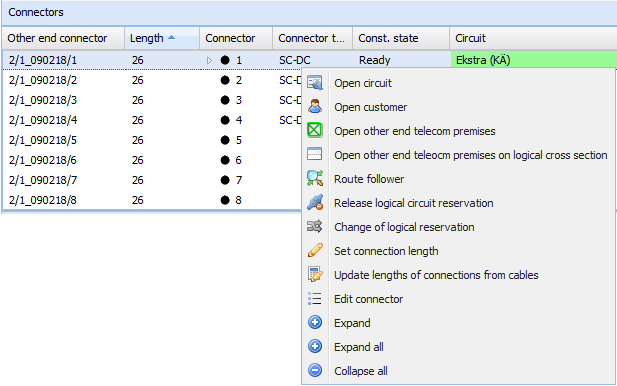
Next, in the same device, select a connector that has no reservations. Click the right mouse button and select either Accept reservation change or Cancel reservation change. Select Route follower to check the route.
Updating lengths of connections
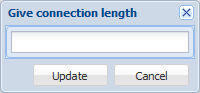
Define the length of a connection by choosing Set connection lengthin the context menu, while the mouse pointer is positioned over the required connector.
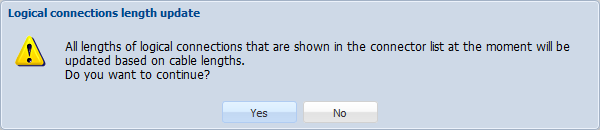
Use the Update lengths of connectionsfrom cables functions to update the lengths of all logical connections based on the actual cable lengths.
Editing connectors
You can open the Connector form for editing from the Cross-sectionform or Telecom premises form. More information on editing connectors is provided in the chapter Managing connectors.
Click the right mouse button and select in the context menu Edit connectors either in the Devices / Cables list (the connectors of all devices on the telecom premises or all the connectors of a device) or in the Connectors list (individual connectors). To activate the numbering of connectors in the view, go to the drop-down menu for Columns and select Number. The connector number column is hidden by default.
Connector splitting
- In the Connectors list, select the connector you want to split. Note that you cannot split a reserved connector.
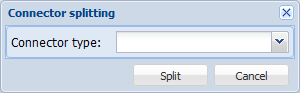
- In the context menu, select Connector splitting.
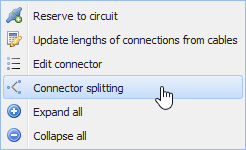
- Select the type of the new connector in the drop-down menu for Connector type.
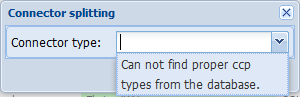
- TIP: If no suitable connectors can be found in the database, check that the connector type has been defined for the connector you selected. More information on defining connector types is provided in the chapter Editing connectors.
- Click Split to split the connector.
Threads
The Threads list in the Cross-sectionform displays information about fiber cable threads and related connections. The list is located at the bottom of the form and provides an overview of each thread and its properties.

The columns in the Threads list includes the following:
| Column | Meaning |
|---|---|
| Database ID | |
| Thread | Indicates the selected thread on the list (cannot be disabled) |
| Color | Indicates the usage state of the thread with color |
| Thread type | Indicates the type of the thread |
| Owner | Indicates the owner of the thread |
| Details | Additional details on the cable thread |
| Circuit | The circuit that has been reserved for the thread |
| Circuit Identifier 2 | The second identifier of the circuit (column hidden by default) |
| Installation address | The street name and number of the customer’s installation address |
| Construction state | The construction state of the thread (column hidden by default) |
| Usage state | Usage state of the thread (column hidden by default) |
| Customer | The name of the customer linked to the circuit |
| From | Indicates the starting point of the fiber connection |
| To | Indicates the destination point of the fiber connection |
| Super circuit | The identifier of the related super circuit |
Functions of the Threads context menu
On Threads, click a thread from the grid using the right mouse button. The displayed context menu includes the following functions:
- Click Route followerto open the Route followerform with information on the telecom premises in question.
- Click the Edit threads
 function, to add cable thread information, for example, their owners, usage state and right of use. The Threads for cable form also displays any circuit identifiers and customer information.
 - Click Expand allto open all circuit drop-down menus on the grid.
- Click Collapse allto collapse all circuit drop-down menus on the grid.
The displayed context menu also includes the following function if the thread has circuit reservations:
- Click Open circuitto open the circuit on the Circuitsform.
- Click Customers
 to open the customer information on Customerform.
Releasing a thread reservation
To start the release of a circuit reservation, select the reserved thread on the list and click Release circuit reservationin the tool bar at the bottom of the form. You can also activate this function by clicking a thread with the right mouse button (Release Circuit Reservation).
You will see the following question: Are you sure you want to release the circuit´s reservation? If you answer Yes, the reservations for the selected connector and connection will be removed from the circuit in question.
Reserving a thread reservation
After you click Reserve connection from the Circuitform, select the thread on the Threads list using the left mouse button, and click Reserve to circuit
 from the toolbar (the right mouse button can also be used for making the selection). After this, the thread in question will appear on the Physical reservations list on the Circuit
 form.
form.